Who replaces Calatrava? Part IV: lists, formations and calendar in the organisation
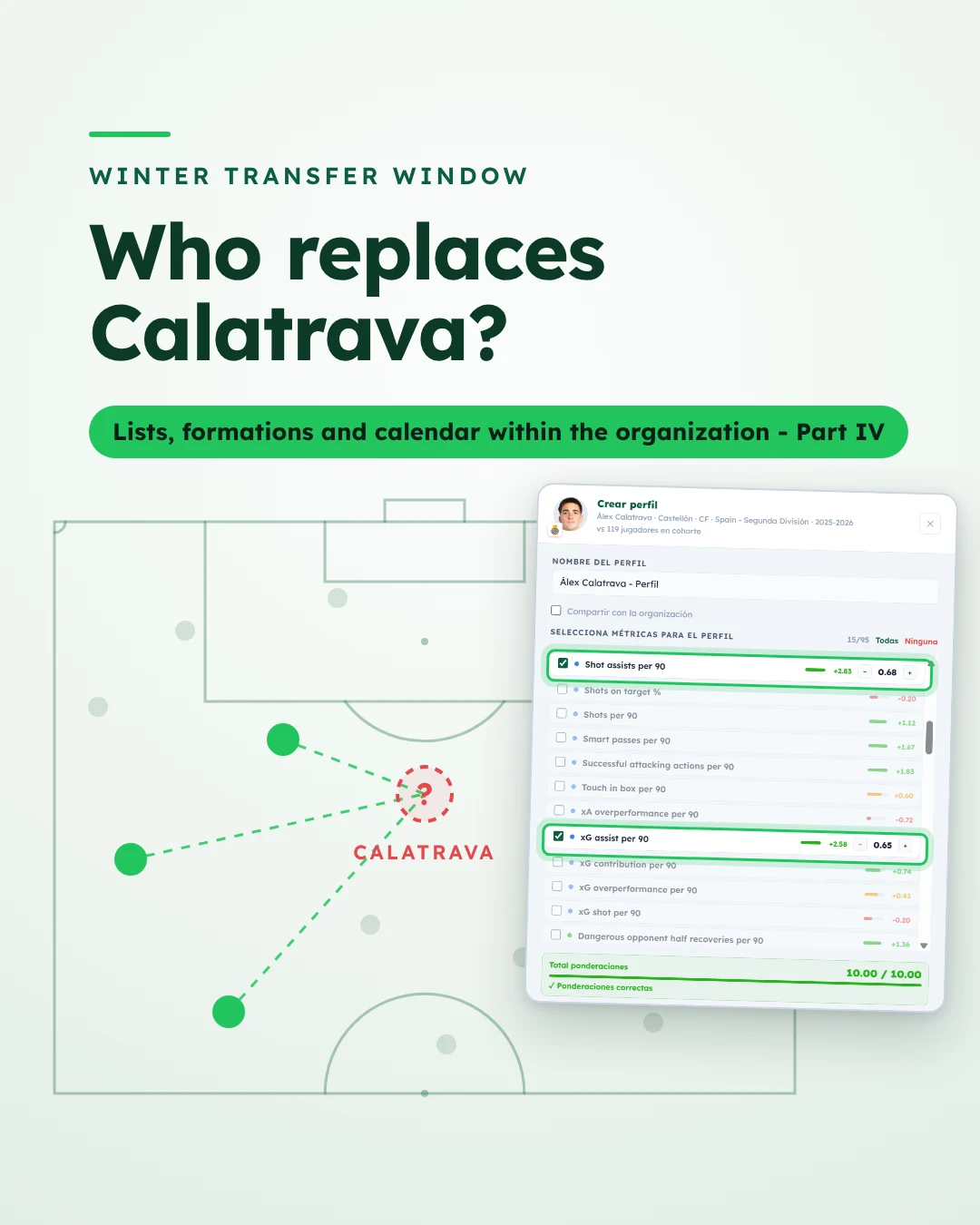
Three instalments in, we have names. In the second part, our experts’ profile gave us two players in accessible leagues, Patrik Wålemark and Emmanuel Ayaosi. It also gave us two players who barely play in the big leagues, Keyliane Abdallah and Peque Fernández. In the third, the profile builder added Mads Frøkjær-Jensen and Edan Diop.
Six candidates are a good starting point, but they are not a decision yet. Between the ranking and the signature there are weeks of work: watching matches, talking to agents, discussing in meetings and ruling players out. And no single person does that work. At a club, the analyst finds, the scout watches, the sporting director decides and the coach gives his opinion. If each of them keeps notes in their own spreadsheet, the winter window turns into a chain of emails.
Today we look at how Smart Scouting System organises that part of the job with lists, formations and a calendar, all shared with the rest of the organisation.
Creating the organisation
Everything starts in the settings, in the organisation section. You only need to type a name and choose a role: scout, sporting director, analyst, coach or other.
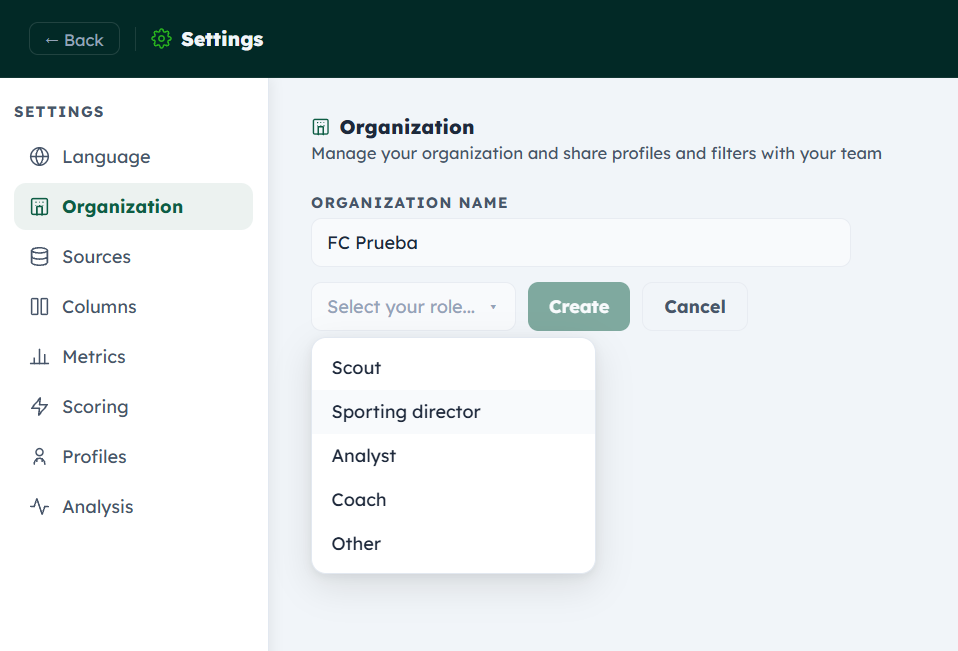
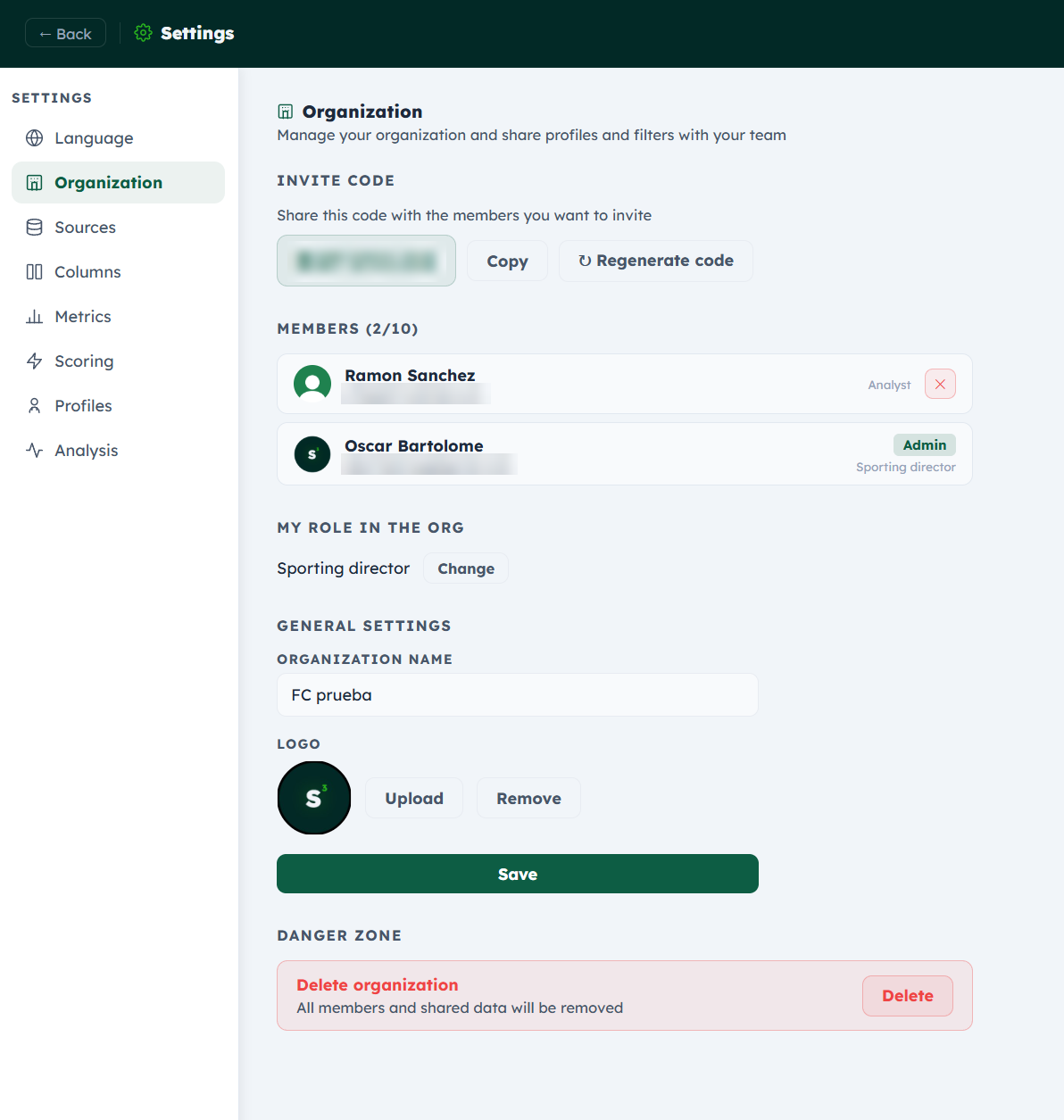
In our case, the sporting director creates the organisation and becomes its administrator. From the same screen he manages everything else: the invitation code, the members, his own role, and the club’s name and logo. At the bottom is the danger zone, with the option to delete the organisation and everything shared in it.
Joining the organisation
To bring someone into the team, there is no need to send email invitations or create user accounts. The administrator copies the invitation code and gives it to whoever he wants. If the code travels further than it should, one click generates a new one.
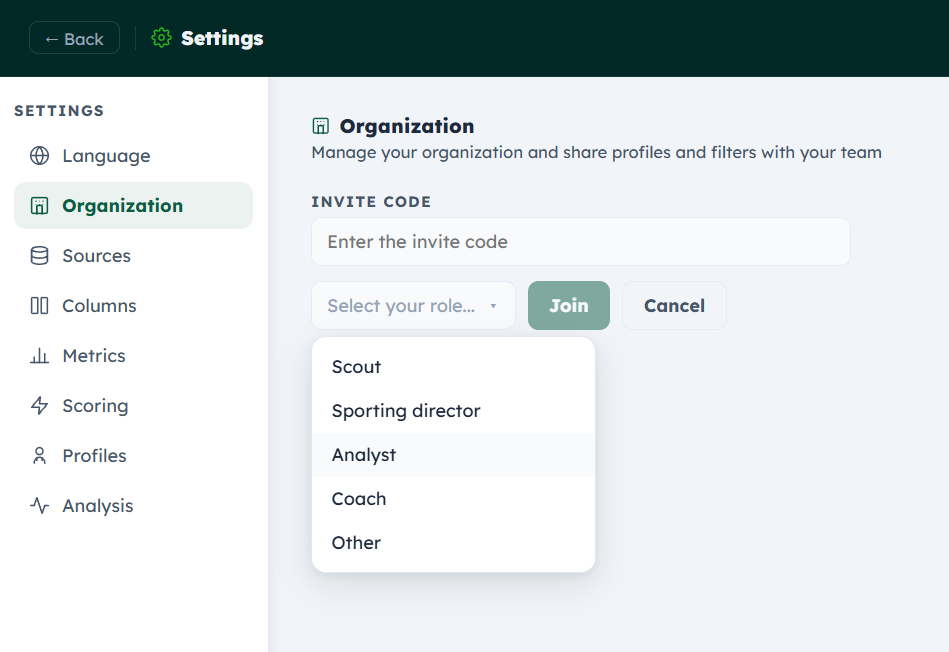
The new member goes to the same section of their own settings, pastes the code, chooses a role and joins. In our example, an analyst joins.
From that moment, the analyst appears in the administrator’s member list, with the role next to the name.
What is shared gets notified
The whole organisation turns on one checkbox that we will see everywhere: share with the organisation. When someone creates a list, a formation or an event with that box ticked, the other members can see it. And every time someone adds something, the others get a notification.
Sharing is optional. If the box is not ticked, the list, the formation or the event stays visible only to the person who created it. A scout can work on his candidates in private, and a sporting director can keep to himself a call he does not want to make public yet. They share it when they are sure.
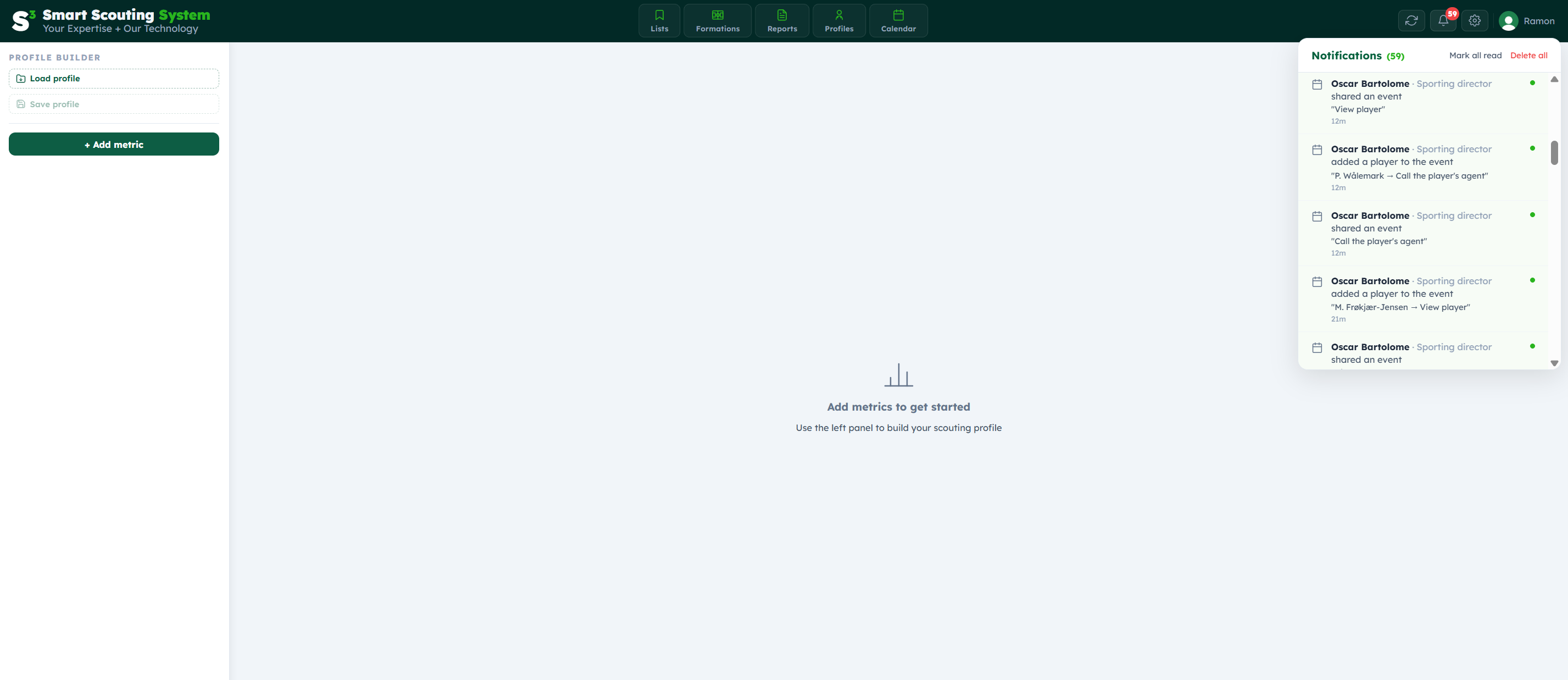
This is the analyst’s view. The bell holds a record of what the sporting director has done: he has added Frøkjær-Jensen and Diop to the winter window list, shared an event and added a player to that event. Each notification says who, in which role, what they did and when. Nobody has to ask how the follow-up on a player is going. They just open the bell.
Let’s see where those notifications come from.
The winter window list
We start with the simplest tool. In the lists section we create a new one, “Winter transfer window”, with a description that makes its purpose clear: players to assess as possible signings. We tick the box to share it.

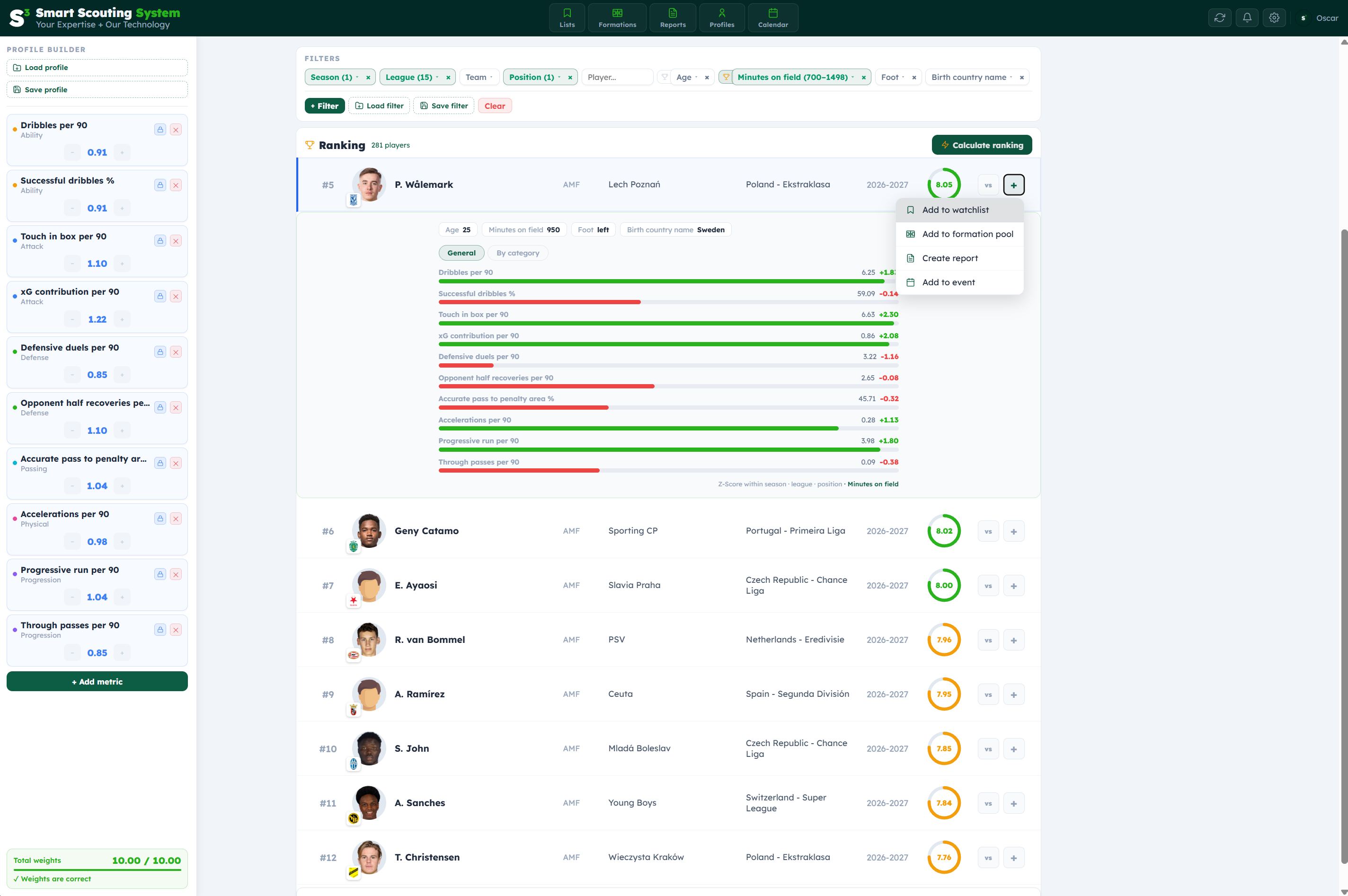
Players are added straight from the ranking. Each row has a ”+” button with four options: add to a list, add to the lineup pool, create a report and add to an event. We start with Wålemark.
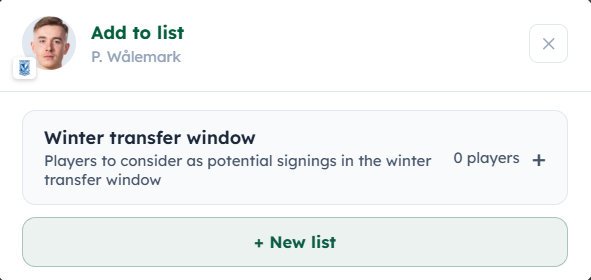
We choose the list and that is it. If the list does not exist yet, you can create it from the same window.
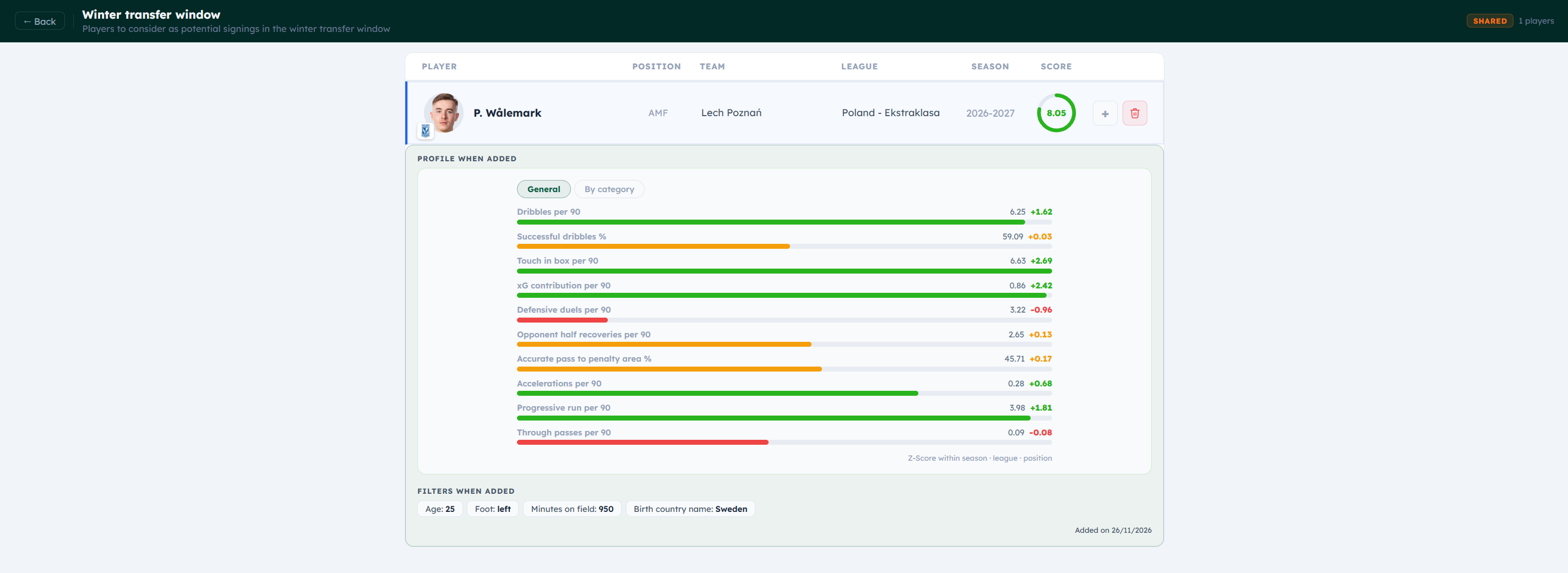
A list that only stores names is of little use three weeks later. That is why, when you add a player, Smart Scouting System also stores the context. It saves the profile that was active, with the detail of every metric, and the player’s values in the search filters. For Wålemark: 25 years old, left-footed, 950 minutes and born in Sweden. It also records the date he was added.
We repeat the process with the other five.
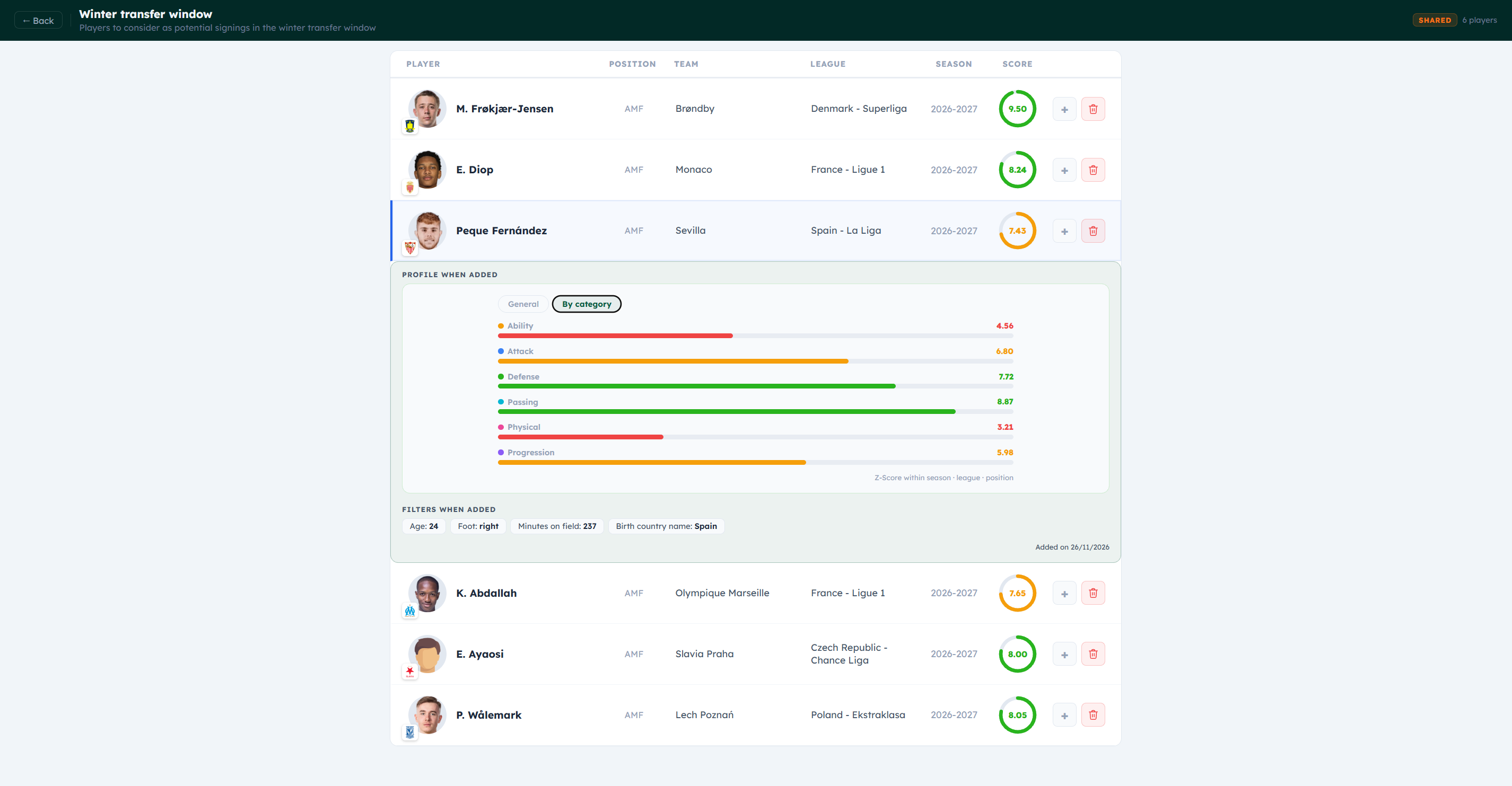
Each card keeps the context in which the player entered the list. Peque Fernández’s card, for example, keeps the profile that was active when we added him and his data at that time: 24 years old, right-footed and 237 minutes.

The list is marked as shared, with its six players, and any member of the organisation can open it.
A formation with candidates by position
A list answers the question “who are we following?”. But in a transfer window the real question is usually a different one: “for which position?”. That is what the formations are for.
In the formations section we create a new lineup, “Future options by position”, and we share it with the organisation as well. We choose a 3-5-2 because it is the system Sarabia is using in his first matches at Espanyol.


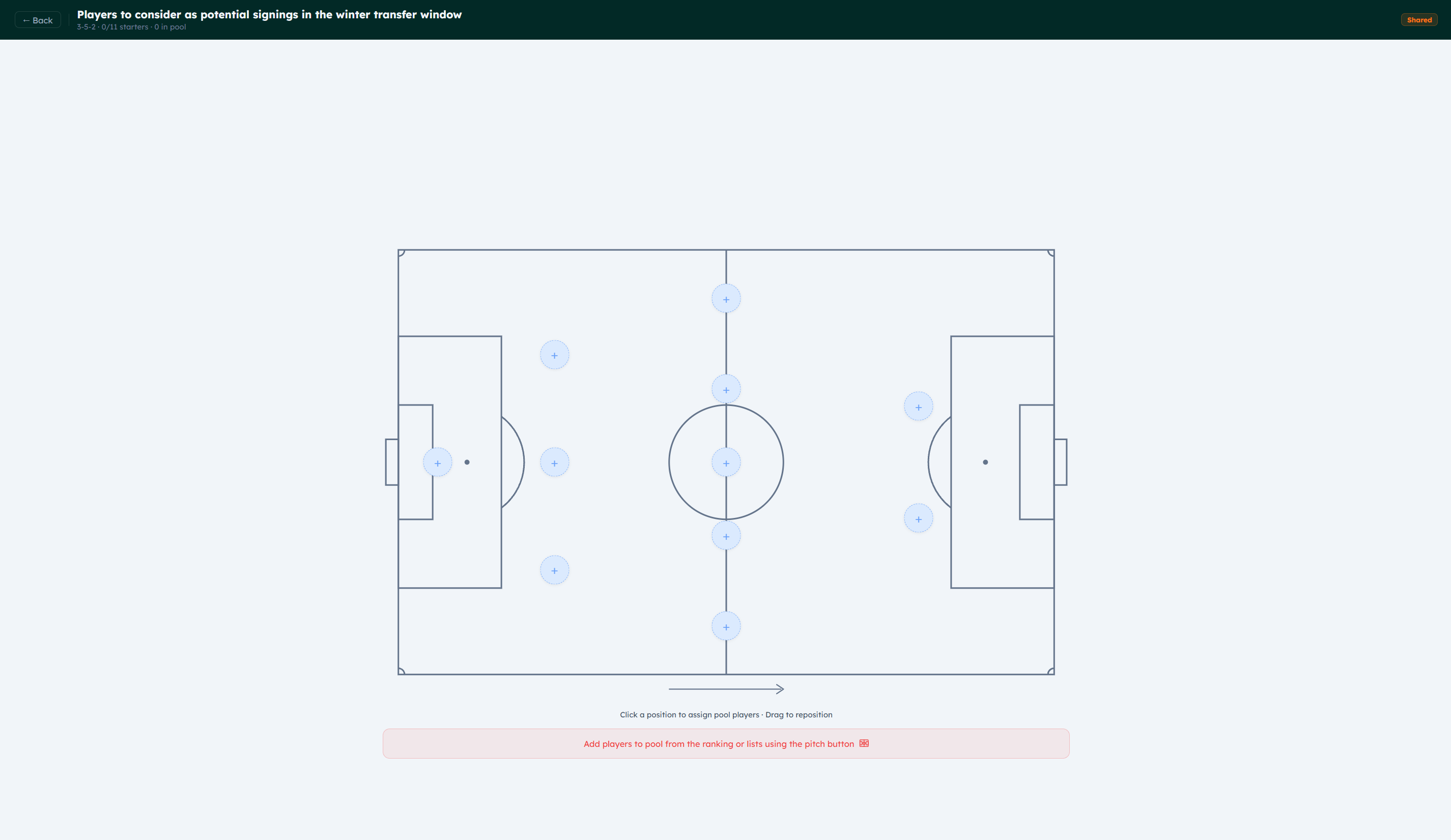
The formation starts empty, and the tool itself shows the way: players are added to the pool from the ranking or from the lists.
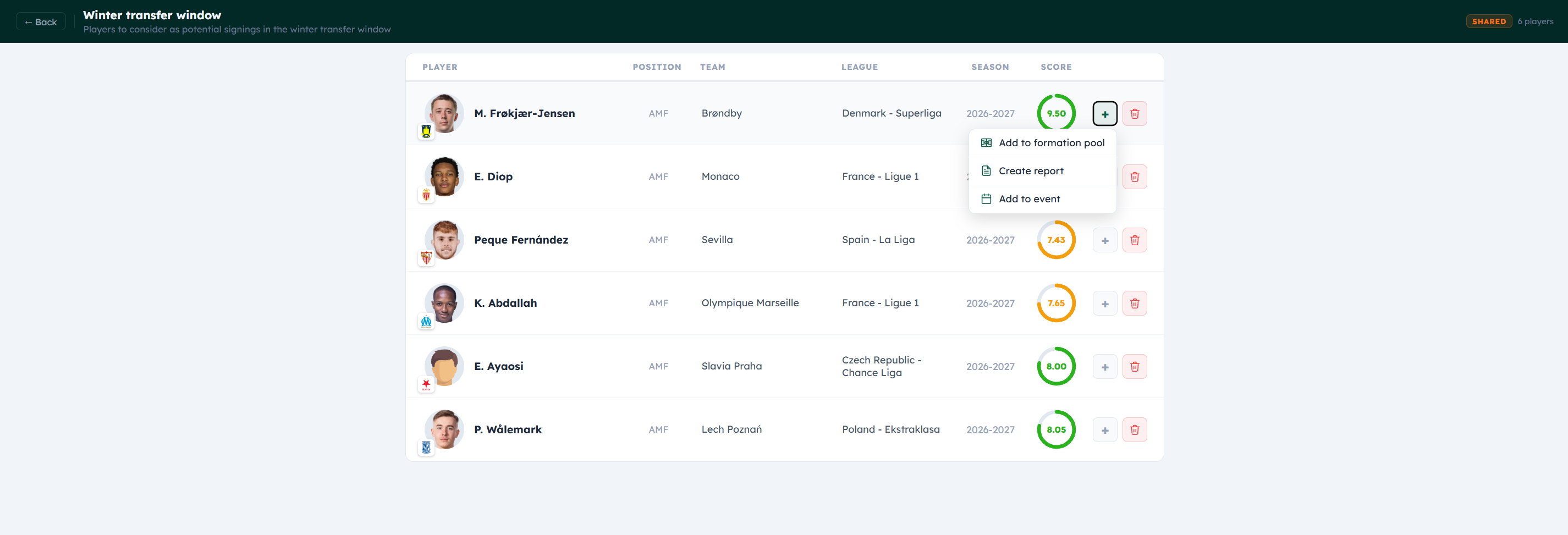
We go back to the winter window list. From here, each player’s ”+” button offers three options. We choose to add him to the lineup pool.
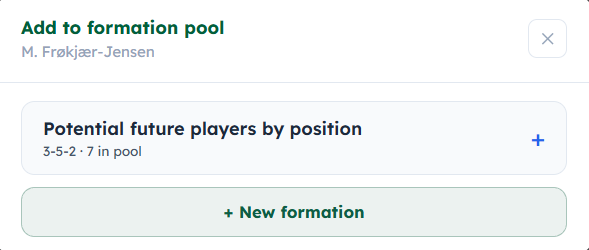
Then we select the formation.
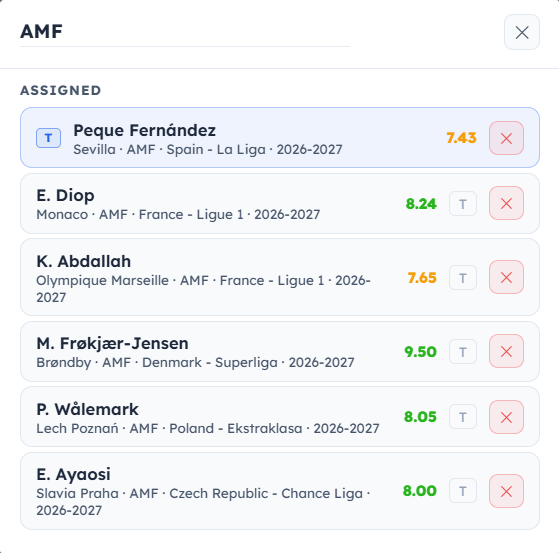
With all six in the pool, it is time to place them. Clicking on a position on the pitch opens the list of candidates for that role. One position can hold several players, and one of them is marked as the starter. We assign all six to the two positions Calatrava could cover: attacking midfield and right central midfield.
The result is a pitch with a starter in each of those two positions. Peque at attacking midfield and Diop at right central midfield are only an example. The orange number on each player shows how many alternatives there are for that position, and players can be dragged to a new spot.
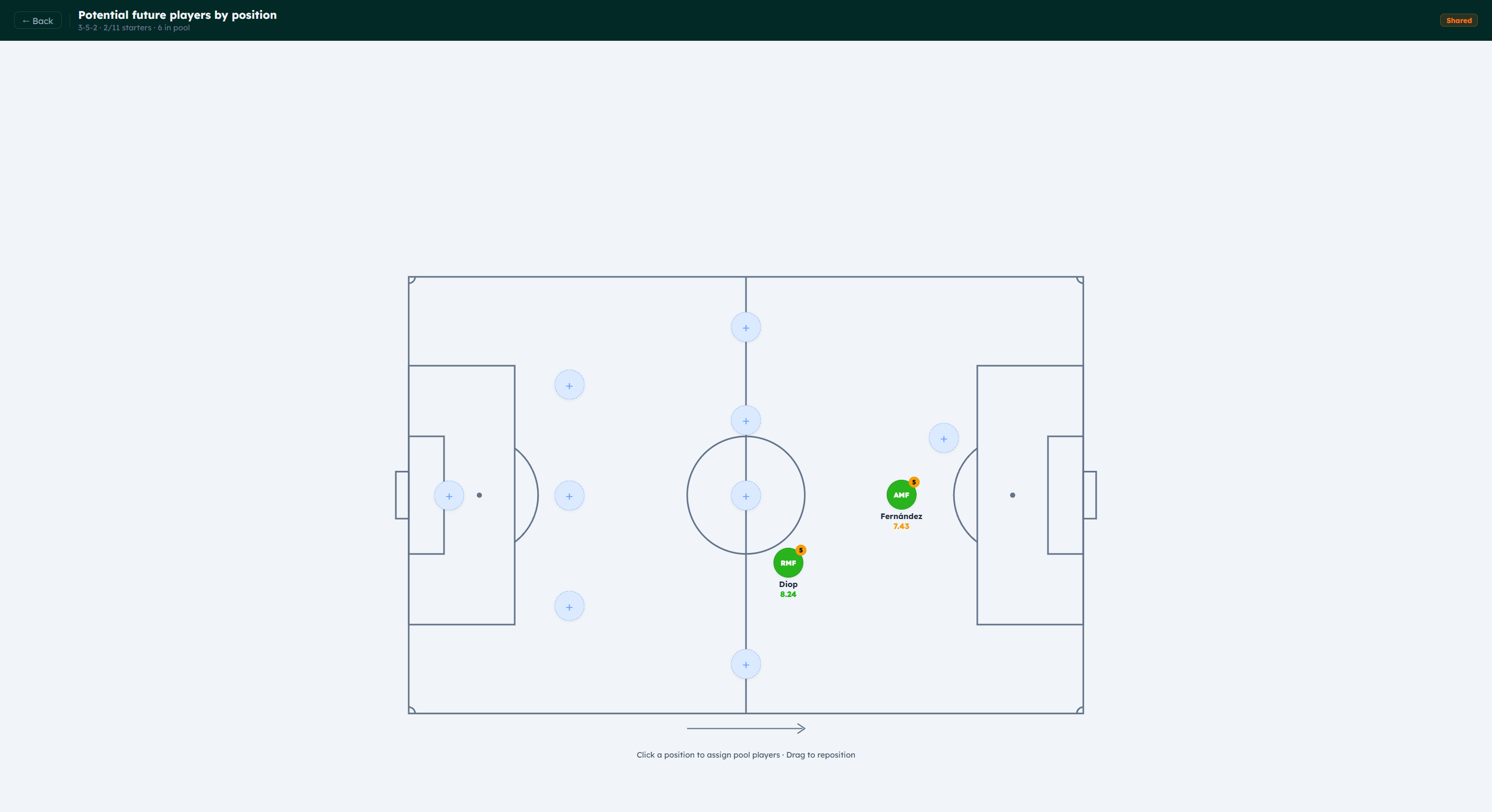
Any recruitment department will recognise this way of working: a map of the squad with names in every gap. The difference is that here every name comes with its data and the profile it was assessed with.
The calendar: viewings, calls and meetings
What is left is to organise time. You do not sign a candidate from a ranking. You have to watch him play, talk to the people around him and discuss him as a group.
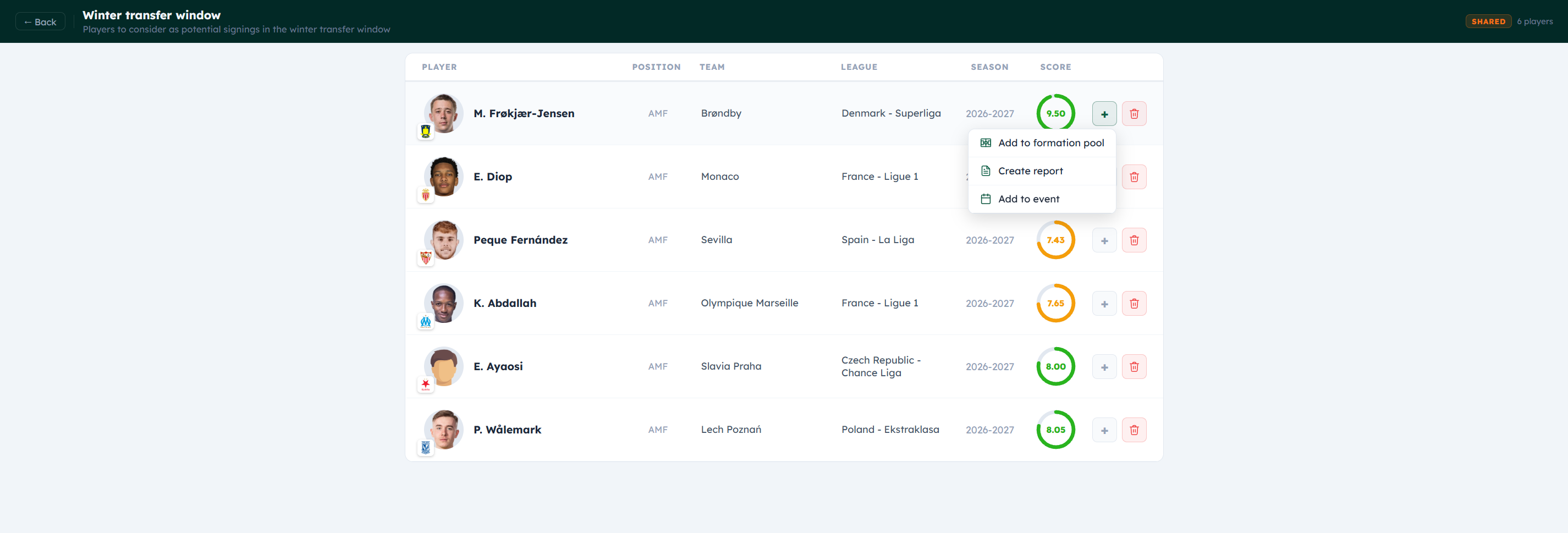
In the list, Frøkjær-Jensen’s ”+” button has the option to add him to an event.
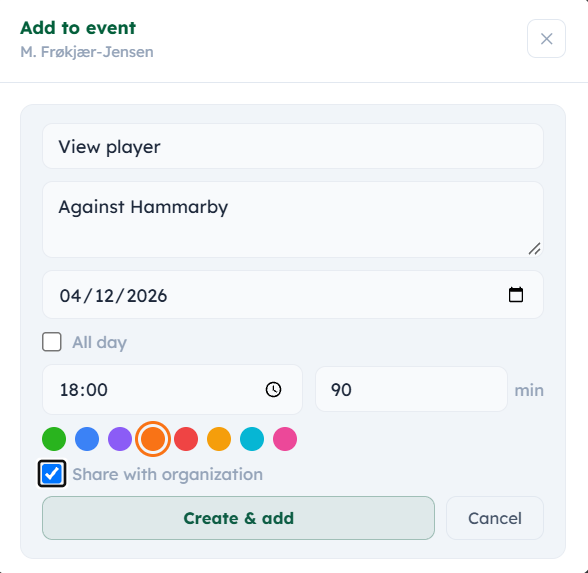
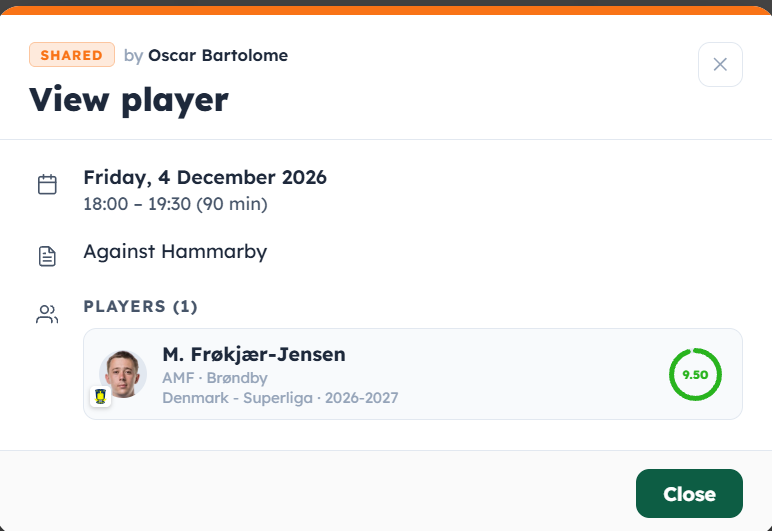
The form is the same as in any calendar: title, description, date, time and duration, or all day. You can also choose a colour to tell event types apart and, once again, tick the box to share it with the organisation. We create a “View player” event for Friday 4 December at 18:00.
When you open the event, you can see who created it, whether it is shared and which players it includes, each with his card and score.
Not every event needs a player. A follow-up meeting is created directly from the calendar with the new event button.
This is the week from 30 November to 6 December:
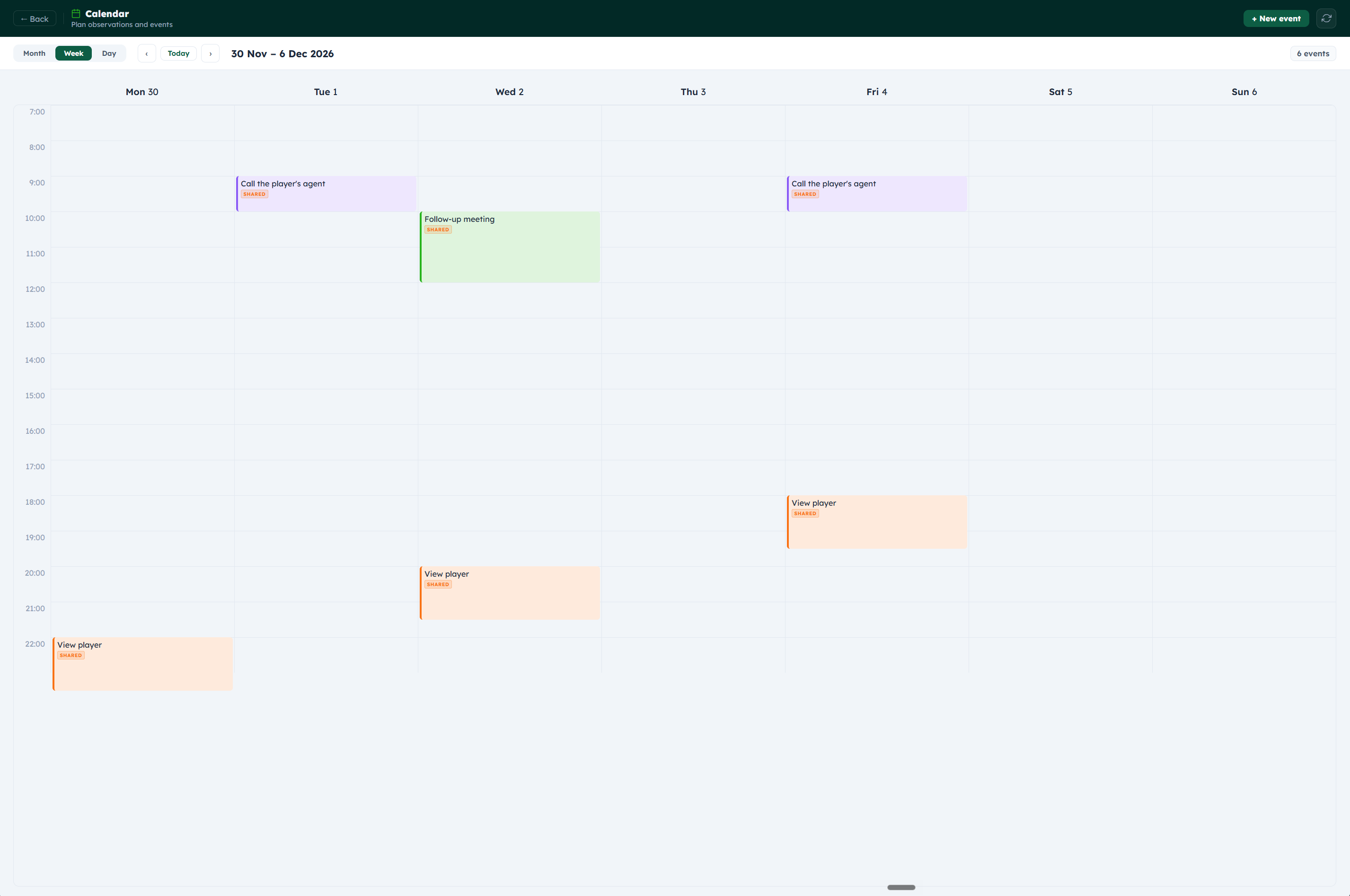
The viewings are in orange. On Monday night we watch Wålemark and Ayaosi, the two candidates from accessible leagues, in the same session to compare them. On Wednesday, Abdallah. On Friday, Frøkjær-Jensen. The calls to agents are in purple: on Tuesday, Diop’s agent, and on Friday, Peque’s. And in green, on Wednesday morning, the follow-up meeting where the sporting director and the analyst go through the list and the formation.
Because all those events are shared, each one has created a notification in the rest of the team’s bell.
What working as an organisation brings
Smart Scouting System does not stop at the ranking. Finding six candidates is the part that shines most, but the window is won or lost in what comes after. You have to make sure that nobody forgets to watch a player, that the call to the agent happens on time and that everyone arrives at Wednesday’s meeting with the same information.
Lists record who we are following and the criteria behind each choice. Formations sort the candidates by position. The calendar puts a date on every step. And the organisation makes all of it everyone’s, with a notification every time something moves.
The tool organises the work. The decision, as always, belongs to the club.
What comes next
In the next instalment, the last one in the series, we close the process with player reports. It is the fourth option of the ”+” button we have used throughout this article, the one we have left aside so far. We will see how to create a report for each candidate, so that the final decision is made on paper and not only on a ranking.